Adding an Image to Your Item
Improve your product listings by adding images to items, making them easier to identify and enhancing the overall customer experience. Images help your staff and customers quickly recognize products during sales and inventory management.
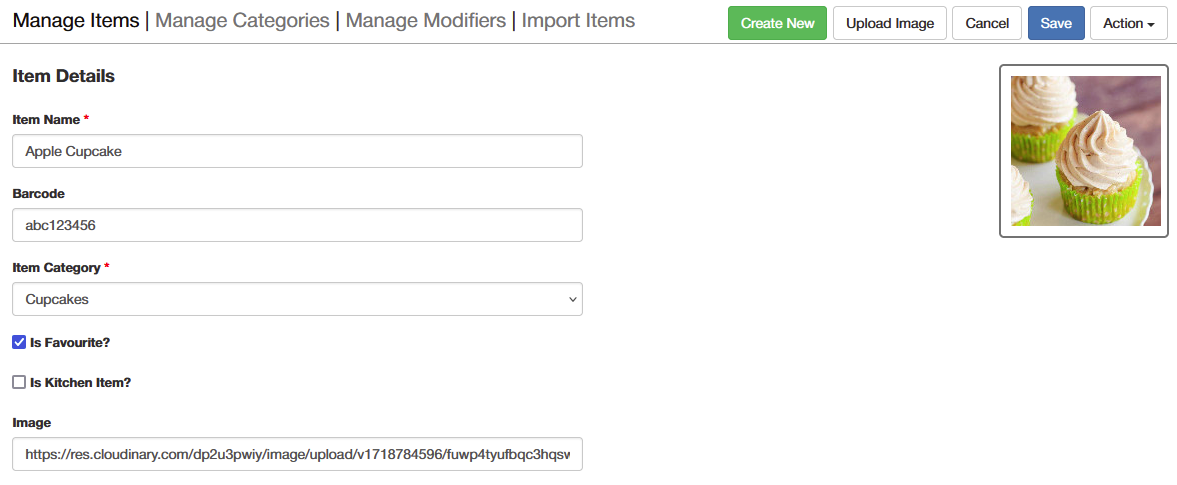
1. Add an Image URL
If you already have an image URL, simply add it to the item and click Save.
2. Create a Cloudinary Account (For Uploading Images)
If you want to upload images, you'll first need to create an account with Cloudinary.
Visit Cloudinary and sign up for a free account.
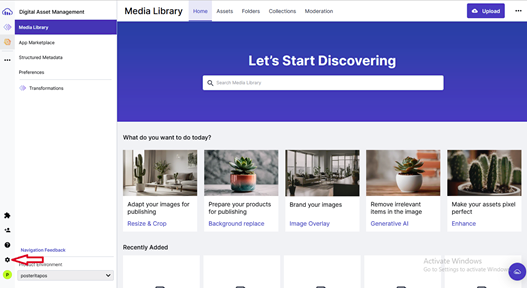
3. Access Cloudinary Settings
Once your Cloudinary account is created, log in and go to the Settings section.
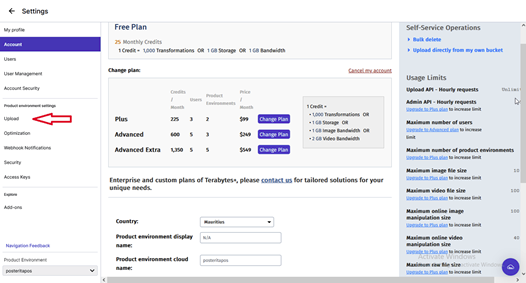
4. Navigate to the Upload Menu
In Cloudinary, go to the Upload section to configure your upload settings.
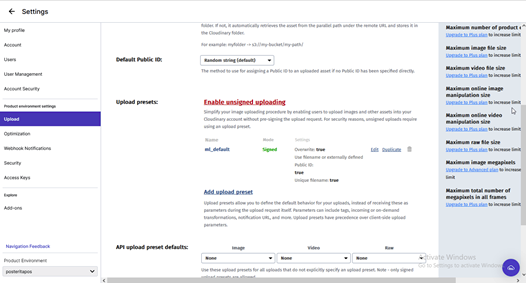
5. Enable Unsigned Uploading
In the Upload Presets section, enable Unsigned Uploading to allow image uploads without authentication.
6. Create an Upload Preset
A preset will be created, which you'll use for uploading images.
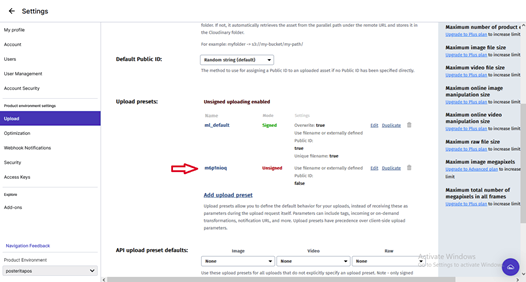
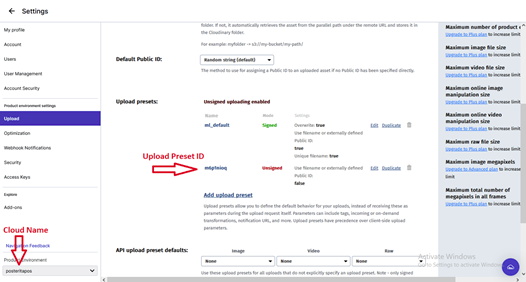
7. Get the Upload Preset ID and Cloud Name
Copy the Upload Preset ID and your Cloud Name, as you will need these for linking Cloudinary with Posterita.
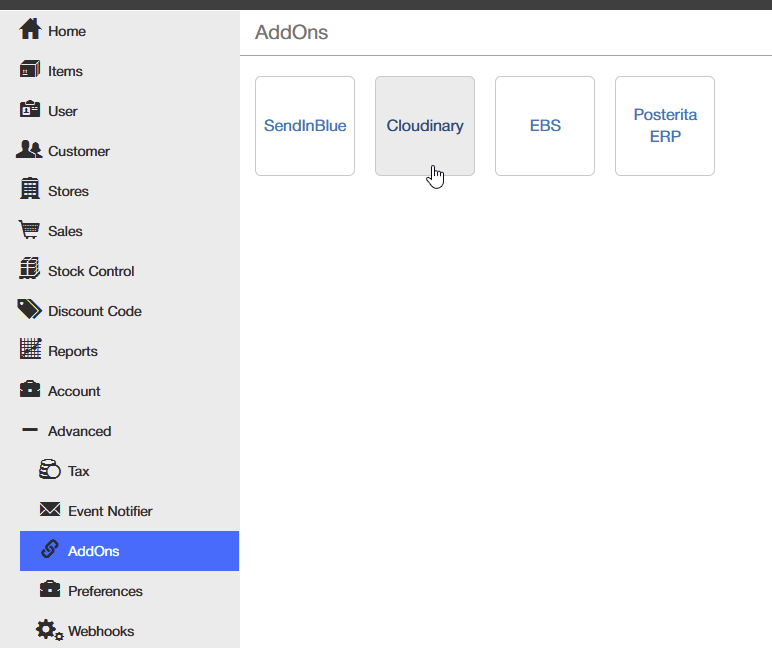
8. Link Cloudinary with Posterita
In the Posterita POS Back Office, navigate to Advanced > AddOns > Cloudinary.
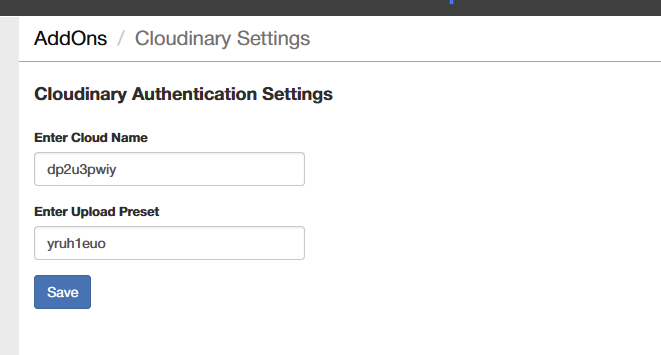
Enter your Cloud Name and Upload Preset ID into the provided fields, then click Save to link the accounts.
9. Upload Images to Posterita
You can now upload your images to your items in Posterita by navigating to the Items Menu, selecting the item you want to edit, and using your Cloudinary settings to add the image.

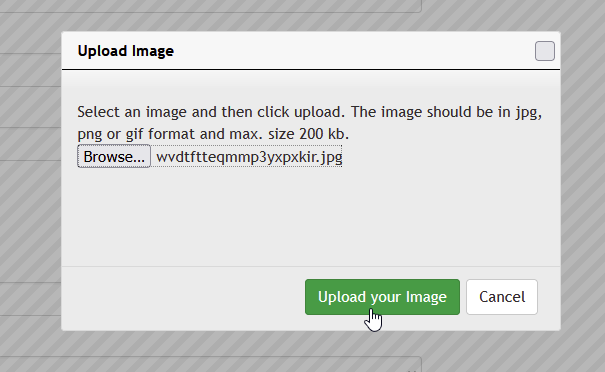
10. Browse for Your Image
Make sure to match the correct image to the corresponding item by verifying the item details.
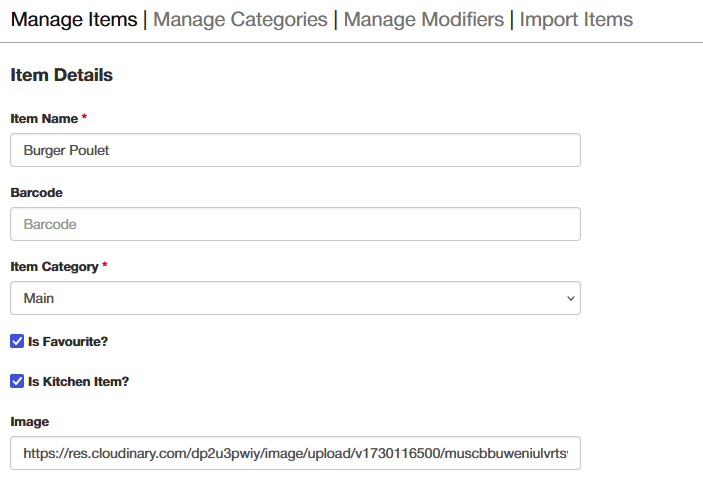
11. Uploaded Image
Your image has been successfully uploaded.
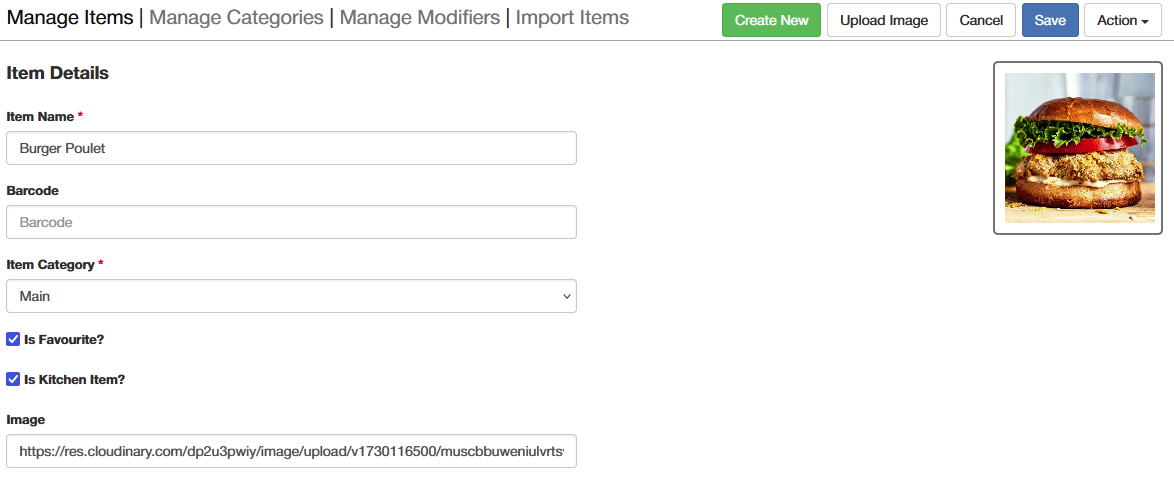
12. Save Image
Save the changes to assign the image to the item.
Important Tips
- Enable Unsigned Uploading: Make sure Unsigned Uploading is enabled in Cloudinary to ensure smooth image uploads through Posterita.
- Use High-Quality Images: Employ high-quality but optimized images to improve page load times without sacrificing clarity.
- Replace or Update Images: You can replace or update images at any time by following the same steps.