Import Items Using a CSV File
Speed up your setup by uploading multiple items at once using a CSV (comma delimited) file. This is ideal for businesses with large inventories that need to be added in bulk.
Steps
1. Access the Import Items Menu
In the Posterita POS Back Office, navigate to the Items Menu and click on "Import Items".

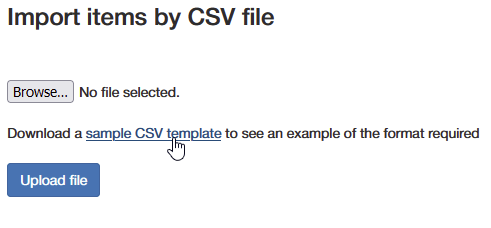
2. Download the CSV (Comma Delimited) Template
Click on the provided link to download the sample CSV template. This template includes necessary columns like Item Name, Barcode, Selling Price, Category, and more.
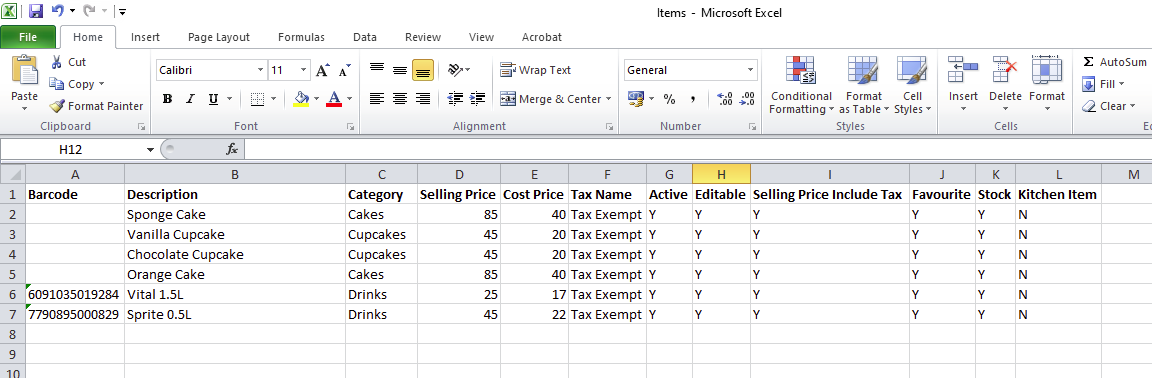
3. Fill in the Item Details
Open the CSV file and fill in the following item information:
- Barcode (optional)
- Description (mandatory)
- Category (mandatory)
- Selling Price
- Cost Price
- Tax Rate (e.g., 0 for tax-exempt, 15 for VAT)
- Active (Y/N to indicate if the item is active)
- Editable (Y to allow editing the item later)
- SellingPriceIncludeTax (Y/N for whether tax is included in the selling price)
- Stock (Y/N to track inventory)
- Kitchen Item (Y/N to set if this item is printed on kitchen orders)
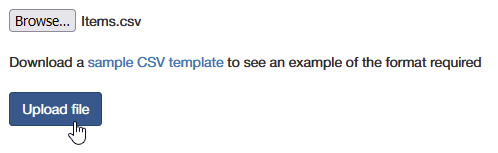
4. Upload the CSV File
After filling in the CSV, "Save" the file and go back to the Import Items menu. Select your completed CSV file and click "Upload File".

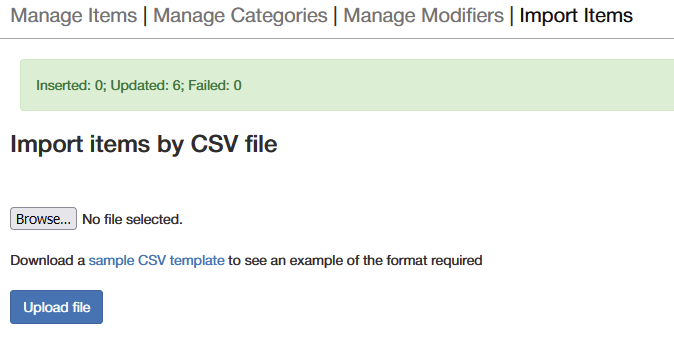
5. Review Uploaded Items
Once uploaded, you can view the items in the Items Menu to ensure everything was imported correctly.
Important Tips
- Organize Your Items: Use categories to keep your inventory structured, making it easier to find and manage items.
- Track Inventory: Enable inventory tracking for items where you need to monitor stock levels in real-time.
- Kitchen Items: Use the Kitchen Item option for products that require a kitchen order printout. If the item is not intended for kitchen use or if your store doesn't have a kitchen, leave this field blank.
- Unique Naming: If managing multiple stores, "ensure that terminal and item names are unique (e.g., StoreName_Item1)" to avoid confusion during reporting.
- Flexibility: You can always return to edit items or categories later through the Items Menu, ensuring your catalog stays updated.
- CSV Format: Ensure that the CSV format remains exactly as provided (comma delimited), as incorrect formatting can result in errors.
- Double-Check Data: Double-check the data in the CSV before uploading to avoid any mistakes in pricing or categorization.
- Post-Upload Edits: You can always go back and edit the items individually if any corrections are needed.