Event Notifier Management
Manage event notifications in Posterita to stay informed about important activities and updates within your system. Event notifications ensure that you, your staff, or your management team are promptly informed about specific events, helping you take timely actions to maintain smooth operations.
1. Setting Up Event Notifications
Currently, Posterita provides event notifications for the End of Day/Close Tills process. This notification ensures that you are informed when tills are closed at the end of the day, helping you maintain control over your daily operations.
1.1 Access the Event Notifications Menu
Navigate to the Advanced menu in the Posterita Lite Back Office and select Event Notifications.
1.2 Create a New Notification

Click the add button to set up a new event notification.
Enter the following details:
- Name: Provide a name for the event notification to easily identify it.
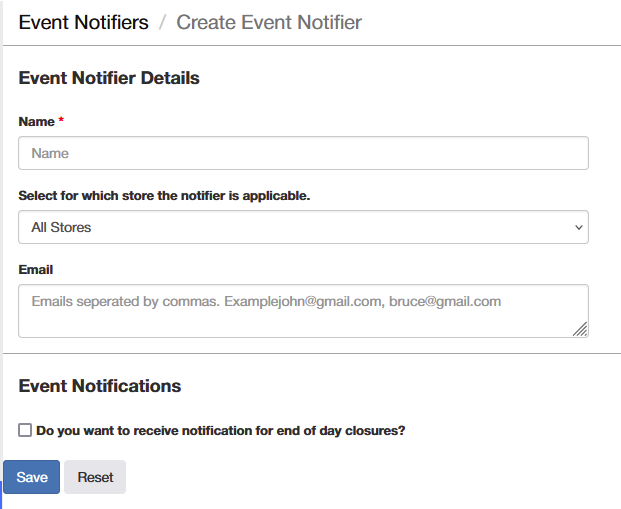
- Select Store: Choose the store for which the notifier is applicable (e.g., All Stores or a specific store).
- Email: Enter the email addresses of recipients separated by commas (e.g., examplejohn@gmail.com, bruce@gmail.com).
- End of Day Notification: Check the box to receive notifications for end-of-day closures.
1.3 Save the Notification
After entering the details, click "Save" to activate the notification. The system will now alert the specified recipients when the event occurs.
2. Editing, Deactivating, or Deleting an Event Notification
2.1 Access Existing Notifications
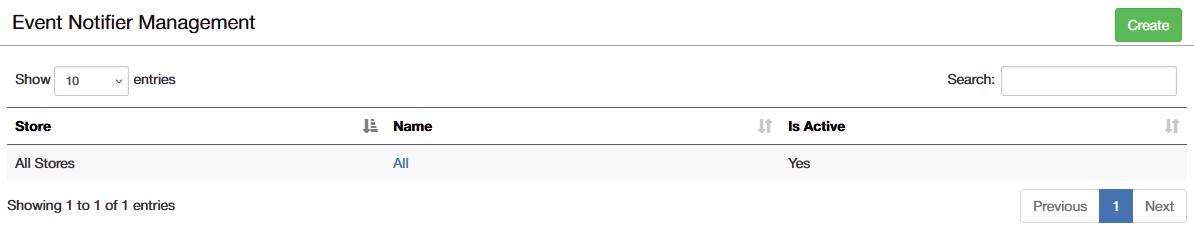
Navigate to the Event Notifications menu to view all configured notifications.
2.2 Edit a Notification
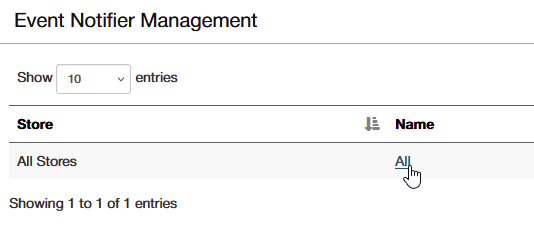
Select a notification from the list to modify its details, such as the recipient or store.
2.3 Deactivate a Notification
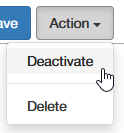
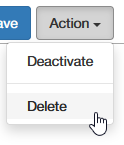
Select a notification from the list and click "Deactivate" to make it inactive without deleting it. This allows you to retain the notification details for future use.
2.4 Delete a Notification
Select the notification and click "Delete" to remove it if it is no longer needed.
Types of Event Notifications
- End of Day/Close Tills: Receive notifications when tills are closed at the end of the day, ensuring that all sales and cash-handling activities are properly reconciled.
Important Tips
- Define Clear Triggers: When setting up notifications, ensure that the recipients and stores are clearly defined to avoid excessive or unnecessary alerts.
- Select Appropriate Recipients: Assign the correct recipient for each notification to ensure that the right person is informed.
- Regular Review: Review notifications periodically to ensure they are still relevant and aligned with current business operations.
- Multiple Store Selection: If applicable, select All Stores for broader coverage or specific stores for targeted notifications.
- Use Multiple Methods: Use a combination of notification methods (e.g., Email and Dashboard Alert) to make sure important updates are not missed.