Purchase Orders
Creating and managing purchase orders in Posterita allows you to efficiently restock your inventory and keep your store stocked with the right products. A well-managed purchase order system helps prevent stock-outs, ensures timely restocking, and fosters better supplier relationships.
Access the Purchase Orders Menu
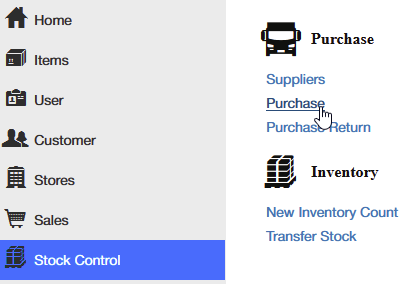
In the Posterita POS Back Office, navigate to Stock Control and click on Purchase. This will open a new purchase order form directly.
Set Up the Purchase Order
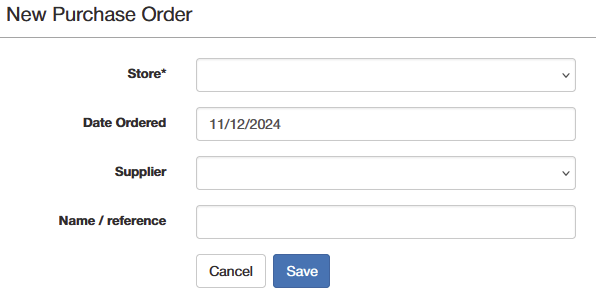
- Store: Select the store where the stock will be delivered.
- Date Ordered: Confirm or adjust the date of the purchase order.
- Supplier: Choose the supplier from your list of existing suppliers.
- Name/Reference: Add a reference name or number for easy tracking and identification of the purchase order.
- Save: After selecting the store, supplier, and adding the reference, click Save to proceed to the item entry stage.
Add Items to the Purchase Order
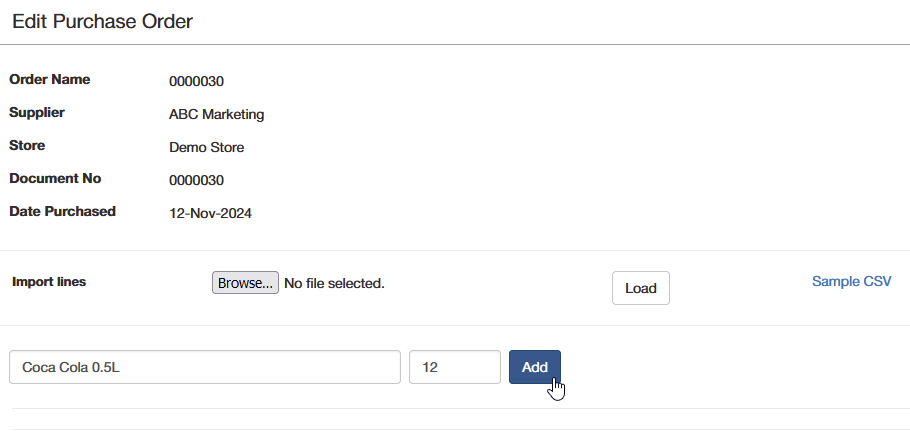
Option 1: Manually Add Items
- Add the required items by searching for them and entering the necessary quantities.
Option 2: Upload Items Using a CSV Template
- Download the template.

- Enter item details in the CSV, including Quantity and Cost Price for each item.
- Upload the CSV: Return to the purchase order, click Upload CSV, and select your file to upload.
- Review Items to ensure all details are correct before proceeding.
Save and Complete the Purchase Order
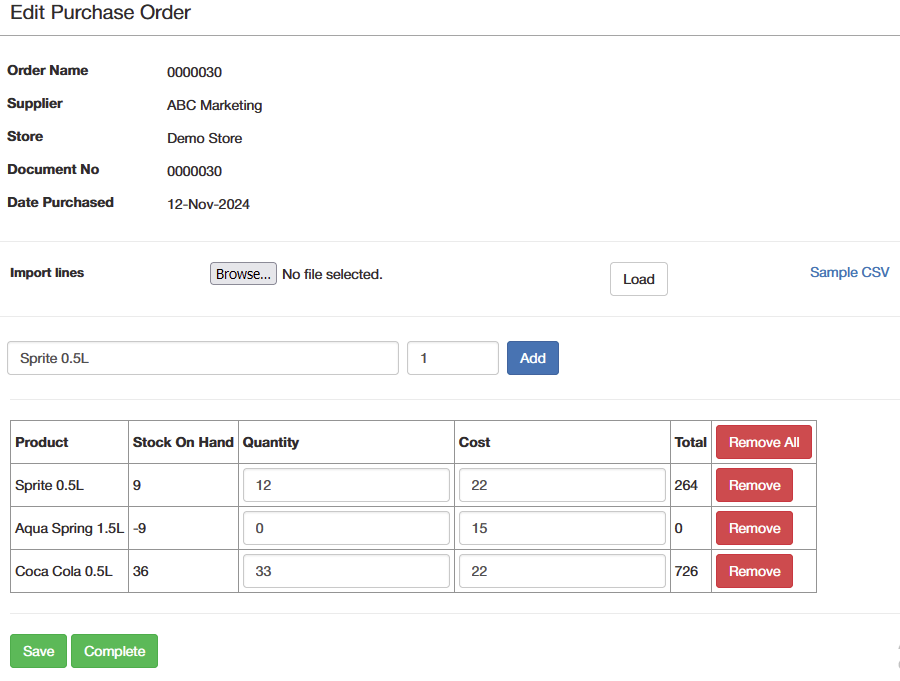
- After adding or uploading items and verifying details, click Save.
- Once the supplier confirms the order, click Complete to finalize the purchase order. This step updates your stock levels accordingly when items are received.
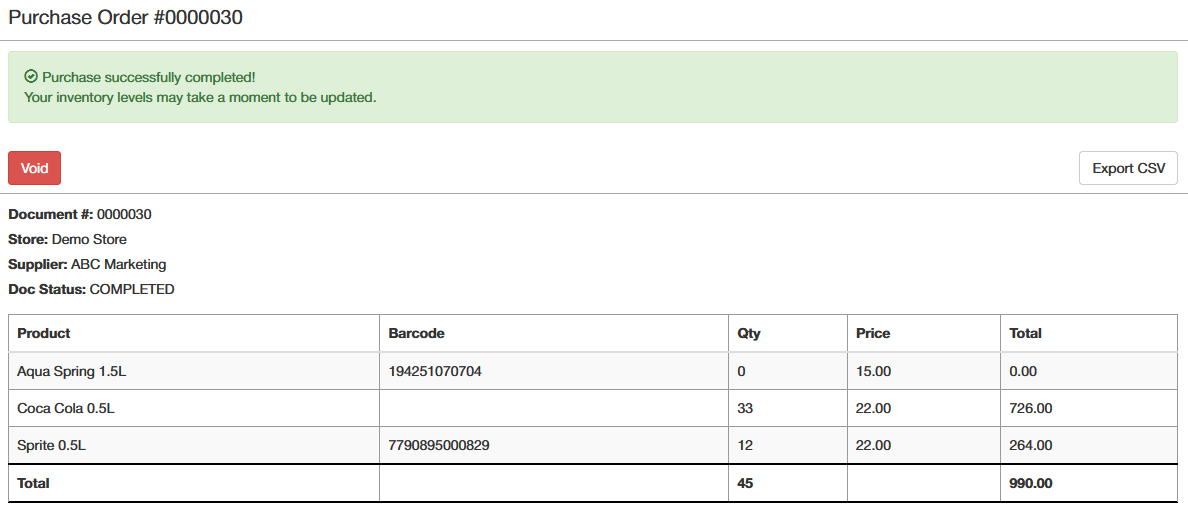
Voiding a Purchase Order
If you need to void a purchase order, you can do so through the Reports section, allowing you to revert any stock adjustments made by the order.
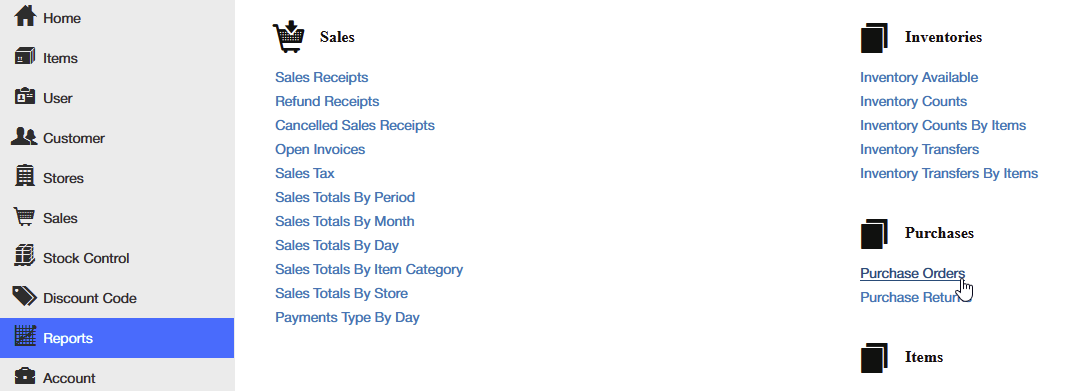
Access Purchase Order Reports
Navigate to Reports > Purchase Orders in the Posterita POS Back Office.
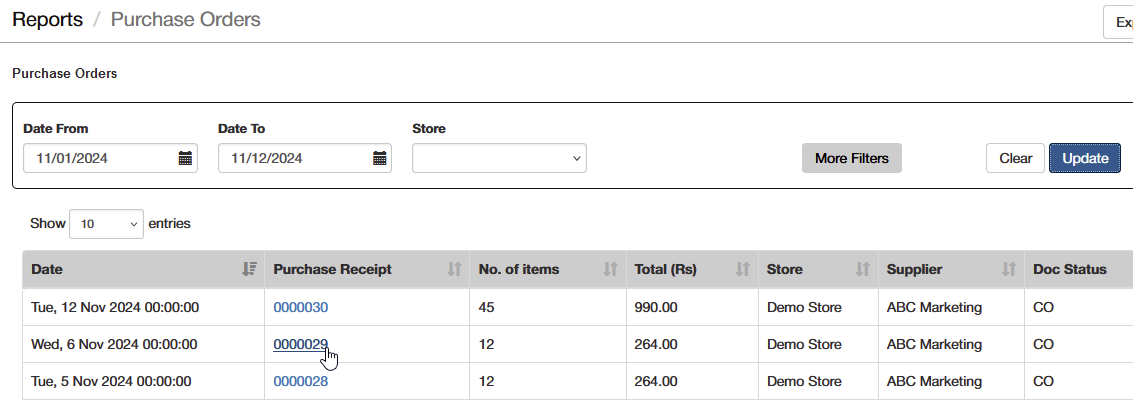
Find the Purchase Order
Enter the date range to locate the specific purchase order you need to void and open it from the list.
Void the Purchase Order
- Click Void to cancel the purchase order.
- Once voided, the purchase quantities will be reverted, adjusting the product's stock levels accordingly.
Why Creating Purchase Orders is Important
Managing purchase orders effectively ensures that you always have the necessary products available for your customers, preventing stock-outs and missed sales opportunities. A properly maintained purchase order system allows you to have full control over your inventory, restocking on time, and maintaining good relationships with your suppliers. It also helps you track the status of orders and manage your stock levels with greater accuracy.
Tips
- Keep Suppliers Updated: Ensure supplier details are current to streamline purchase order creation.
- Use Reference Numbers: Assign a unique reference number for each purchase order for easier tracking and follow-ups.
- Double-Check Quantities: Verify item quantities before completing the order to avoid over-ordering or under-ordering.
- Complete Orders Promptly: When items arrive, mark the purchase order as complete to automatically update your stock levels.
- CSV Upload: For larger orders, use the CSV upload feature to save time by adding multiple items at once.
This approach ensures efficient inventory control and helps maintain strong supplier relationships.