Managing Suppliers
In retail, managing suppliers is crucial for ensuring you always have stock available to meet customer demand. Setting up your suppliers in Posterita allows you to easily create purchase orders and keep your inventory levels up to date, helping you streamline procurement processes and reduce stock shortages that can affect sales. The Supplier Management features enable you to add, deactivate, or delete supplier profiles, and keep track of transactions. Posterita's reporting features also help you assess your interactions with each supplier, gain insights into their product performance, and manage relationships effectively.
Adding New Suppliers
Creating supplier profiles in Posterita allows you to efficiently manage your supplier relationships, keep track of inventory purchases, and ensure smooth communication with your suppliers.
1.1 Access the Suppliers Menu
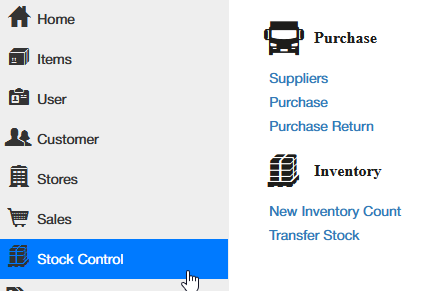
In the Posterita POS Back Office, navigate to the Stock Control menu and select Suppliers.
1.2 Create a New Supplier
Click to add a new supplier.
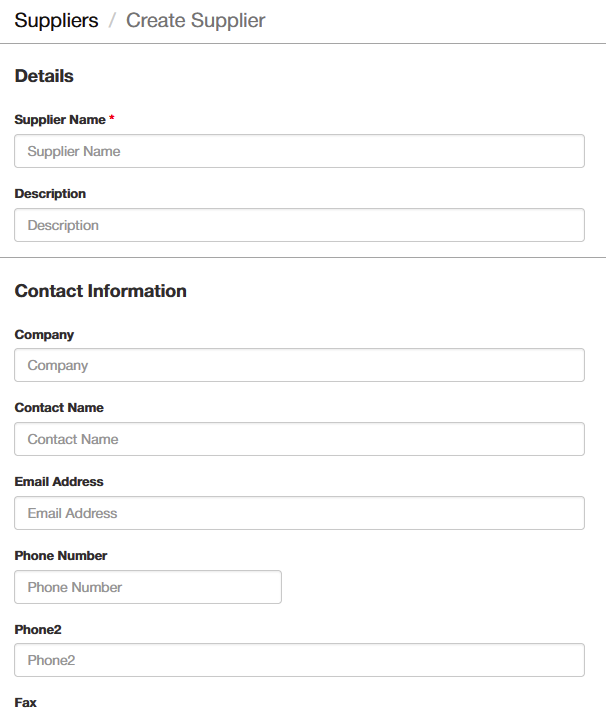
Enter the supplier's details, such as:
- Supplier Name: The name of the supplier company or individual.
- Contact Information: Include the phone number and email for easy communication. This information also allows Posterita to send automatic reorder requests to suppliers, share insights into how well their products are performing, and facilitate the creation and sending of Purchase Orders.
- Supplier Address: Helps in tracking the supplier location for orders and returns.
- Additional details, such as Registration/VAT Number, can also be entered to maintain complete records. This information is generally a legal requirement to ensure compliance with tax and business regulations.
1.3 Save the Supplier
Once all details are entered, click to add the supplier to your list.
Important Tips
- Complete Supplier Profiles: Maintaining complete and accurate supplier profiles ensures that you can easily track supplier transactions, communicate efficiently, and manage credit arrangements. Complete profiles also facilitate better reporting, audit trail maintenance, and support automatic reorders.
- Centralized Supplier Information: Keeping all supplier information updated and in one place helps streamline purchasing and ensures that order information is accurate, thereby reducing the likelihood of errors and delays.
Deactivating or Deleting Suppliers
If you no longer work with a supplier, you may need to deactivate or delete them from your list. Deactivating allows you to retain their details for historical reference, whereas deleting is suitable for suppliers without any transactions.
2.1 Access the Suppliers Menu
In the Posterita POS Back Office, navigate to the Supplier Menu.
2.2 Select the Supplier
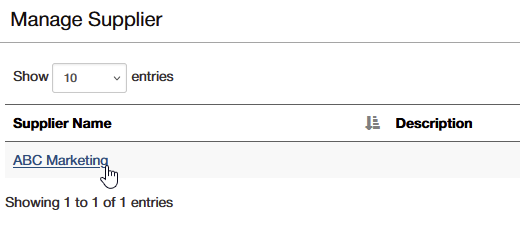
Find the supplier you wish to deactivate or delete, and click on their name to open their details.
2.3 Deactivate a Supplier
Deactivating keeps their details in the system but removes them from the active list:
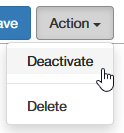
- Click the Action button in the top right corner and select Deactivate.
- This is useful when you might need the supplier again or want to retain their history for reporting.
2.4 Delete a Supplier
Note: Deleting a supplier is only possible if there are no transactions or outstanding purchase orders with them.
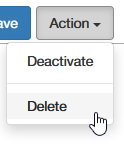
To delete a supplier with no associated transactions:
- Click the Action button in the top right corner and select Delete.
- Confirm the deletion when prompted to permanently remove the supplier profile. It is not possible to delete a supplier with whom transactions have occurred, as doing so would compromise accounting integrity and historical records.
Important Tips
- Deactivating vs. Deleting: Deactivating is useful if the supplier might be needed again in the future or if their details are required for historical records. Deleting should be reserved for suppliers with no transaction history.
- Audit Trail Considerations: To maintain accurate financial and historical records, it is recommended to deactivate rather than delete suppliers who have been involved in transactions. Deactivating a supplier keeps their records intact for auditing and future reference.