Setting Up Store and Terminal on Posterita POS
Managing and updating your store and terminal details is essential for seamless business operations. A store represents your physical sales location, while a terminal refers to the device or point where transactions are processed. Keeping this information accurate ensures efficient processes and correct receipt details.
Quick Setup Steps
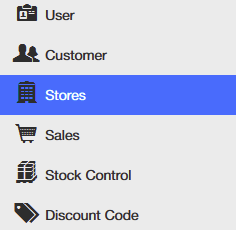
- Access the Stores Menu: Go to the Stores Menu in the Posterita POS Back Office.
- Open Store Details: Click on your store name to open the store details page.
- Enter Your Store Information: Input or review details like Store Name, Address, and Phone Number.
- Save Store Information: Click "Save" to confirm updates.
- Review and Update Terminal Information: Review terminal details and make updates as needed.
Detailed Walkthrough
1. Access the Stores Menu
Navigate to the Stores Menu within the Posterita POS Back Office.
2. Open Store Details
Click on your store name to open the details page.
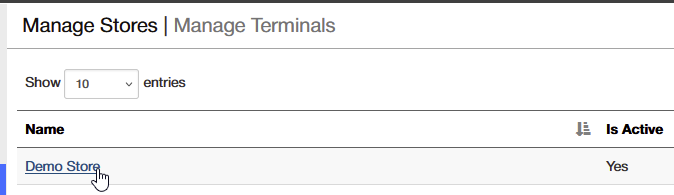
Why It Matters: Opening store details allows you to ensure that all business information, including address and contact information, is accurate. This data appears on customer receipts and internal reports, affecting how your store is presented both internally and externally.
3. Enter Your Store Information
Input or review details such as:
- Store Name
- Store Address
- Store Phone Number
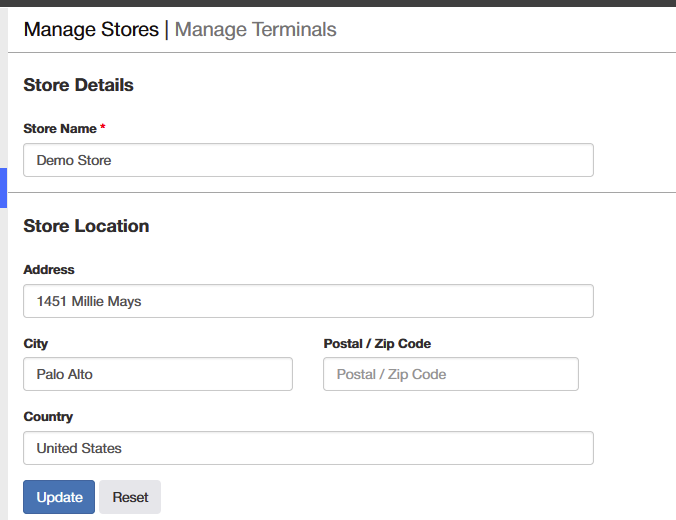
Why It Matters: Accurate store information is key to proper functioning. Correct details ensure that receipts reflect accurate information and customers have reliable contact points.
4. Save Store Information
Click the Save button after verifying all details.

5. Review and Update Terminal Information
A terminal is automatically created and linked to your store by default. You can review terminal details or make updates for better terminal management.
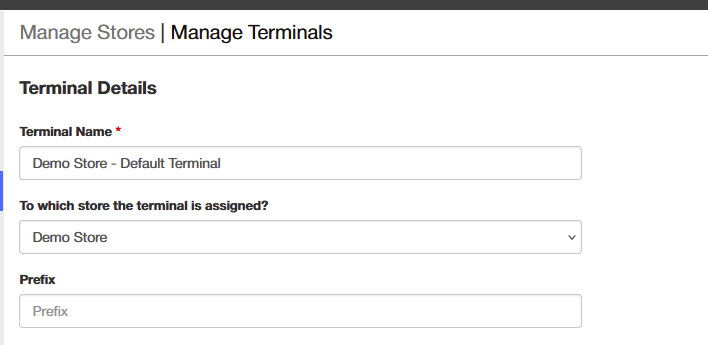
Why It Matters: Proper terminal setup ensures that transactions are processed accurately. Reviewing terminal information regularly helps maintain the smooth processing of sales.
Important Tips
- Review Regularly: A store and terminal are created by default, but reviewing them helps catch any errors or changes needed for accuracy.
- Keep Details Accurate: Ensure your store and terminal details are always up to date for seamless operations and correct receipt information. When managing multiple locations, use descriptive naming conventions such as
StoreName_terminal1andStoreName_Locationto avoid confusion when running reports and ensure clear, accurate data identification.